[ブログに戻る](/ja/blog) # 透かしを使用してPDFにエクスポート
Sergey Sherstnev 7月 22, 2022 [\#pdf](/ja/blog/tag/pdf) [\#getting started](/ja/blog/tag/getting-started)
エクスポートされたPDFドキュメントに透かし (プロットスタンプ) を追加し、これらの透かしに異なるオプションを設定できます。
PDFExportParams クラスの任意のオブジェクトは、[`Watermark`](https://docs.opendesign.com/tkernel/TD_PDF_2D_EXPORT__Watermark.html) インスタンスの配列を含めることができ、配列に新しい透かしを追加したり、配列からすべての透かしを削除したりできます。透かしを管理するために、[`PDFExportParams`](https://docs.opendesign.com/tkernel/TD_PDF_2D_EXPORT__PDFExportParams.html) クラスは次のインターフェースを提供します。
- [`addWatermark()`](https://docs.opendesign.com/tkernel/TD_PDF_2D_EXPORT__PDFExportParams__addWatermark@const_Watermark_.html) — ウォーターマークの配列に新しいウォーターマークオブジェクトを追加します。
- [`watermarks()`](https://docs.opendesign.com/tkernel/TD_PDF_2D_EXPORT__PDFExportParams__watermarks@const.html) — 以前に追加されたすべてのウォーターマークを取得します。
- [`clearWatermarks()`](https://docs.opendesign.com/tkernel/TD_PDF_2D_EXPORT__PDFExportParams__clearWatermarks.html) — オブジェクトからすべてのウォーターマークを削除します。
透かしのパラメータは、透かしのプロパティを格納する[`Watermark`](https://docs.opendesign.com/tkernel/TD_PDF_2D_EXPORT__Watermark.html)構造体で表されます。
- ウォーターマークのテキストとその属性(フォント名、フォントサイズ、フォント色、不透明度)。利用可能なフォント名は、[`WatermarkFonts`](https://docs.opendesign.com/tkernel/TD_PDF_2D_EXPORT__Watermark__WatermarkFonts.html) 列挙型で表されます。
```
Watermark watermark;
watermark.text = L"ODA Platform";
watermark.font = Watermark::kTimesRoman; //default value - Times Roman
watermark.color = ODRGB(255, 0, 0); //default value – black
watermark.fontSize = 24; //default value – 48
watermark.opacity = 75; //default value - 50%
```
バージョン23.3以降、PDFエクスポートモジュールは、オペレーティングシステムにインストールされているTrueTypeフォントを使用できます(ウォーターマークパラメータの設定方法を示す以下のコードフラグメントを参照してください)。
```
Watermark watermark;
watermark.font = Watermark::kSystemTTFFont;//後方互換性を維持するための追加の列挙値
watermark.fontName = L"Arial"; //書体
```
- [`WatermarkPosition`](https://docs.opendesign.com/tkernel/TD_PDF_2D_EXPORT__Watermark__WatermarkPosition.html) 列挙型データ型で定義されたページ上の位置(以下の図は、各位置での透かしの表示方法を示しています)。
- kLeftToRight — 透かしはページの中心で左から右に配置されます。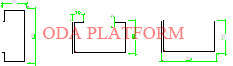
- kUpperLeft — 透かしはページ左上隅に配置されます。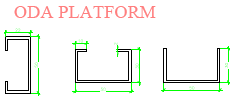
- kUpperRight — 透かしはページ右上隅に配置されます。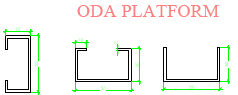
- kLowerRight — 透かしはページ右下隅に配置されます。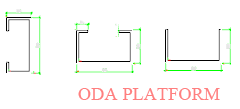
- kLowerLeft — 透かしはページ左下隅に配置されます。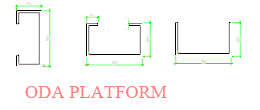
- kUpperLeftToLowerRight — 透かしはページの左上隅から右下隅に配置されます。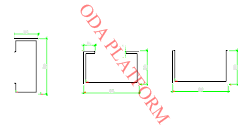
- kLowerLeftToUpperRight — 透かしはページの左下隅から右上隅に配置されます。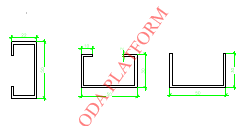
- kUpperMiddle — 透かしはページの上部中央に配置されます(垂直方向は上部、水平方向は中央)。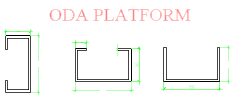
- kLowerMiddle — 透かしはページの下部中央に配置されます(垂直方向は下部、水平方向は中央)。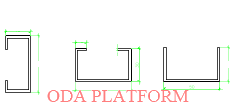
- kLeftMiddle — 透かしはページの左端中央に配置されます(垂直方向は中央、水平方向は左端)。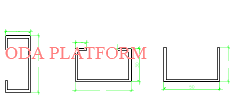
- kRightMiddle — 透かしはページの右端中央に配置されます(垂直方向は中央、水平方向は右端)。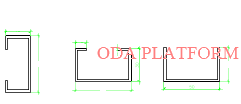
以下のコードフラグメントは、透かしをページの左上隅から右下隅の方向に配置します。
```
watermark.position = Watermark:: kUpperLeftToLowerRight;
```
- kLeftToRight — 透かしはページの中央で左から右に配置されます。
- kUpperLeft — 透かしはページ左上隅に配置されます。
- kUpperRight — 透かしはページ右上隅に配置されます。
- kLowerRight — 透かしはページ右下隅に配置されます。
- kLowerLeft — 透かしはページ左下隅に配置されます。
- kUpperLeftToLowerRight — 透かしはページ左上隅から右下隅に配置されます。
- kLowerLeftToUpperRight — 透かしはページ左下隅から右上隅に配置されます。
- kUpperMiddle — 透かしはページの上部中央に垂直方向と水平方向に配置されます。
- kLowerMiddle — 透かしはページの下部中央に垂直方向と水平方向に配置されます。
- kLeftMiddle — 透かしは、ページの中央に垂直に、ページの左端に水平に配置されます。
- kRightMiddle — 透かしは、ページの中央に垂直に、ページの右端に水平に配置されます。
- スケーリングオプション: 透かしは、[`Watermark`](https://docs.opendesign.com/tkernel/TD_PDF_2D_EXPORT__Watermark.html)構造体内の対応するフラグを設定することで、ページサイズに合わせることもできます(位置によって異なります)。
- ページの中央に合わせる。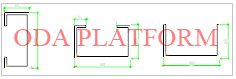
- ページの上隅(左または右)に合わせる。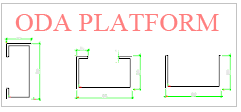
- ページの下隅(左または右)に合わせる。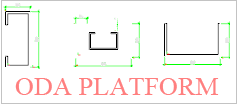
- ページを左上から右下隅に合わせる。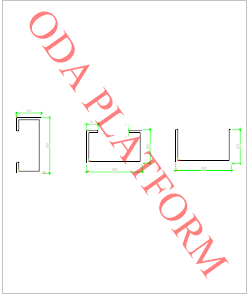
- ページを左下から右上隅に合わせる。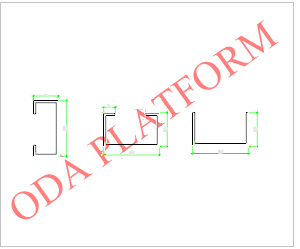
次のコードフラグメントは、透かしをページの左上から右下隅に合わせる方法を示しています。
```
watermark.color = ODRGB(255, 0, 0);
watermark.opacity = 75;
watermark.text = L"ODA Platform";
watermark.position = Watermark:: kUpperLeftToLowerRight;
//set the scaling option: Font size in this case will be calculated automatically.
watermark.scaleToPage = true;
```
- ページの中央に合わせる。
- ページの左上隅または右上隅に合わせます。
- ページの左下隅または右下隅に合わせます。
- ページを左上から右下隅に合わせます。
- ページを左下から右上隅に合わせます。
- 透かしのオフセットは、[`Watermark`](https://docs.opendesign.com/tkernel/TD_PDF_2D_EXPORT__Watermark.html) 構造体のオフセット変数を通じて設定できます。
```
OdGePoint2d offset;
```
オフセット値はミリメートルで表され、その計算は透かしの位置によって異なります(左下隅の場合は右と上に、右上隅の場合は左と下に数えられます)。
- ラジアンで測定された回転角度。回転角度の値を設定することで、垂直または逆さまのテキストを設定したり、透かしテキストに別の角度を設定したりできます。
```
//vertical text
watermark.rotation = OdaPI2;
//upside down text:
watermark.rotation = OdaPI;
//arbitrary watermark angle
watermark.rotation = OdaToRadian(50);
//the fit to page flag can also affect the rotated watermark text
watermark.scaleToPage = true;
```
回転したテキストにもページに合わせるフラグを適用できます(上記のコードフラグメントのように)。
**注:** 透かしテキストを回転させると、透かしの位置が変わったり、ページから削除されたりする場合があります。必要に応じて、PDFエクスポートモジュールは、透かしの位置(ページの隅または中央)を維持するために、透かしを自動的に移動します。
- 特定のページに透かしを配置するためのページインデックス。デフォルトでは、透かしは出力PDFドキュメントのすべてのページに配置されます(pageIndexプロパティは-1に等しい)。
```
Watermark watermark;
//adds a watermark only to the first page
watermark.pageIndex = 0;
```
- 透かしとして画像を使用する: テキストの代わりに画像を透かしとして追加できます。画像透かしを設定した場合、透かしにテキストを設定することはできません(ただし、1つのドキュメントに複数の透かしを設定できます)。回転、オフセット、不透明度などの透かしパラメータは、テキスト透かしと同様に画像透かしにも適用できます。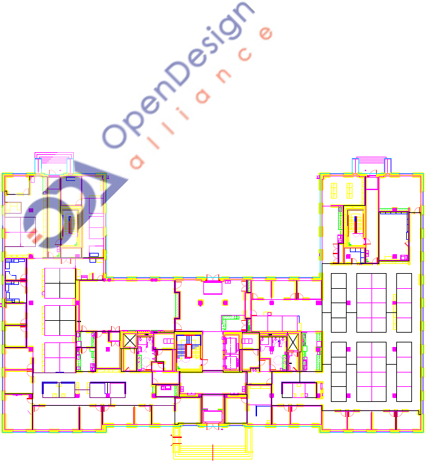次のコードフラグメントは、指定された高さと幅で画像を透かしとして追加する方法を示しています。
```
Watermark watermark;
watermark.scaleToPage = false;
watermark.imageHeight = 50;
watermark.imageWidth = 50;
watermark.imagePath = pHostApp->findFile(L"pict.jpg");
```
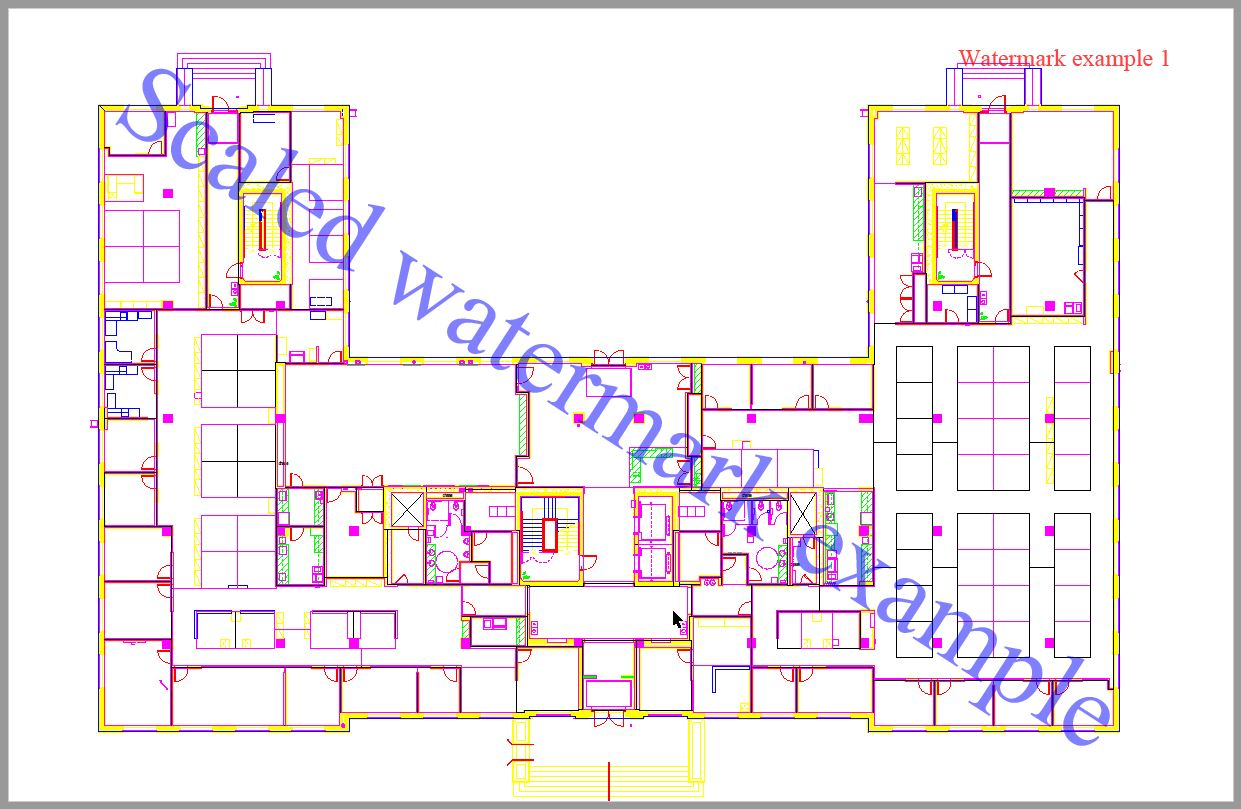
以下のコードフラグメントが示すように、[`PDFExportParams`](https://docs.opendesign.com/tkernel/TD_PDF_2D_EXPORT__PDFExportParams.html)オブジェクトに複数の透かしを追加できることに注意してください。
```
PDFExportParams params;
Watermark watermark;
watermark.font = Watermark::kTimesRoman; //default value - Times Roman
watermark.color = ODRGB(255, 0, 0); //default value – black
watermark.fontSize = 24; //default value – 48
watermark.opacity = 75; //default value - 50%
Set watermark text:
watermark.text = L"Watermark example 1";
watermark.position = Watermark::kUpperRight; //default - left to right in the page center
//Add the first watermark
params.addWatermark(watermark);
//Change the options of the watermark
watermark.color = ODRGB(0, 0, 255);
watermark.opacity = 50;
watermark.text = L"Scaled watermark example";
watermark.position = Watermark:: kUpperLeftToLowerRight;
//set the scaling option: Font size in this case will be calculated automatically.
watermark.scaleToPage = true;
//Add the second watermark:
params.addWatermark(watermark);
```
結果のPDFファイルは以下の図に示されています。
[OdaMfcApp](https://docs.opendesign.com/td/td_samples.html) サンプルアプリケーションでは、\[PDFにエクスポート\] ダイアログを使用して、PDFエクスポートの透かしオプションを指定できます。
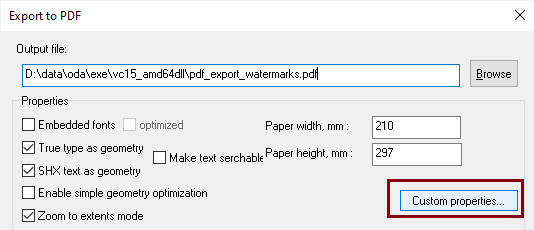「カスタムプロパティ」ボタンをクリックして、追加の「カスタムPDFエクスポートプロパティ」ダイアログを開きます。次に、「プロットスタンプ」ボタンをクリックして、透かしオプションを設定するための「プロットスタンプ/透かし」ダイアログを表示します。
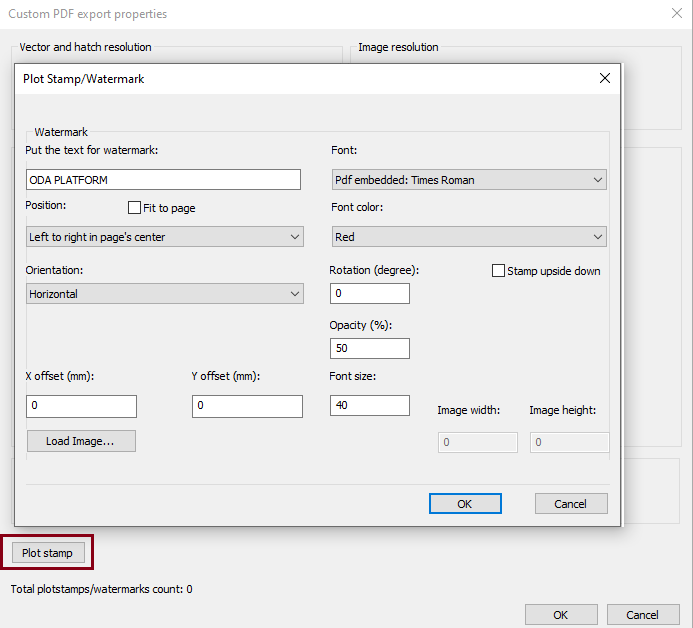このダイアログでは、透かしのテキスト、テキストフォント、フォントサイズ、テキストの色、透かしの位置、不透明度、その他の透かしのプロパティを指定できます。
詳細については、[ODAドキュメント](https://docs.opendesign.com/td/export_to_pdf_03parameters_flags_watermark.html)を参照してください。
## 今すぐ始める
**ODAソフトウェアを60日間無料でお試しください。
リスクなし、クレジットカード不要。**
[無料で試す](https://www.opendesign.com/ja/free-trial)