[返回博客](/cn/blog) # 使用水印导出为 PDF
Sergey Sherstnev 七月 22, 2022 [\#pdf](/cn/blog/tag/pdf) [\#getting started](/cn/blog/tag/getting-started)
您可以在导出的 PDF 文档中添加水印(绘图标记),并为这些水印设置不同的选项。
`PDFExportParams` 类的任何对象都可以包含一个 [`Watermark`](https://docs.opendesign.com/tkernel/TD_PDF_2D_EXPORT__Watermark.html) 实例数组,可以向该数组添加新的水印,也可以从该数组中删除所有水印。为了管理水印,[`PDFExportParams`](https://docs.opendesign.com/tkernel/TD_PDF_2D_EXPORT__PDFExportParams.html) 类提供了以下接口:
- [`addWatermark()`](https://docs.opendesign.com/tkernel/TD_PDF_2D_EXPORT__PDFExportParams__addWatermark@const_Watermark_.html) — 将新的水印对象添加到水印数组中。
- [`watermarks()`](https://docs.opendesign.com/tkernel/TD_PDF_2D_EXPORT__PDFExportParams__watermarks@const.html) — 检索所有先前添加的水印。
- [`clearWatermarks()`](https://docs.opendesign.com/tkernel/TD_PDF_2D_EXPORT__PDFExportParams__clearWatermarks.html) — 从对象中删除所有水印。
水印参数由 [`Watermark`](https://docs.opendesign.com/tkernel/TD_PDF_2D_EXPORT__Watermark.html) 结构表示,该结构存储水印属性:
- 水印的文本及其属性(字体名称、字体大小、字体颜色、不透明度)。可用的字体名称由 [`WatermarkFonts`](https://docs.opendesign.com/tkernel/TD_PDF_2D_EXPORT__Watermark__WatermarkFonts.html) 枚举表示。
```
Watermark watermark;
watermark.text = L"ODA Platform";
watermark.font = Watermark::kTimesRoman; //默认值 - Times Roman
watermark.color = ODRGB(255, 0, 0); //默认值 – 黑色
watermark.fontSize = 24; //默认值 – 48
watermark.opacity = 75; //默认值 - 50%
```
从 23.3 版本开始,PDF 导出模块可以使用操作系统中安装的 TrueType 字体(请参阅下面说明水印参数设置的代码片段)。
```
Watermark watermark;
watermark.font = Watermark::kSystemTTFFont;//用于保持向后兼容性的额外枚举值
watermark.fontName = L"Arial"; //字体
```
- 页面上的位置,由 [`WatermarkPosition`](https://docs.opendesign.com/tkernel/TD_PDF_2D_EXPORT__Watermark__WatermarkPosition.html) 枚举数据类型定义(以下图片展示了水印在每个位置的外观):
- kLeftToRight — 水印位于页面中心,从左到右。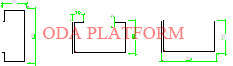
- kUpperLeft — 水印位于页面的左上角。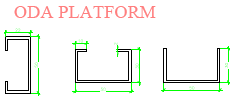
- kUpperRight — 水印位于页面的右上角。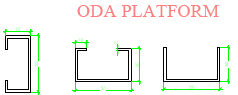
- kLowerRight — 水印位于页面的右下角。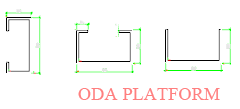
- kLowerLeft — 水印位于页面的左下角。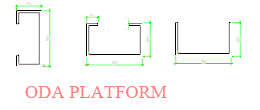
- kUpperLeftToLowerRight — 水印从页面的左上角延伸到右下角。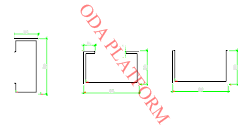
- kLowerLeftToUpperRight — 水印从页面的左下角延伸到右上角。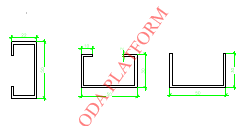
- kUpperMiddle — 水印垂直位于页面顶部,水平位于页面中间。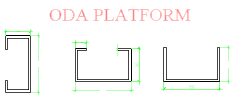
- kLowerMiddle — 水印垂直位于页面底部,水平位于页面中间。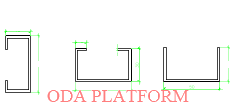
- kLeftMiddle — 水印垂直位于页面中间,水平位于页面左边缘。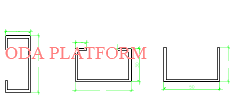
- kRightMiddle — 水印垂直位于页面中间,水平位于页面右边缘。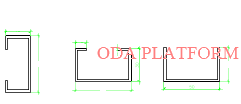
以下代码片段将水印定位在从页面的左上角到右下角的方向。
```
watermark.position = Watermark:: kUpperLeftToLowerRight;
```
- kLeftToRight — 水印位于页面中心,从左到右。
- kUpperLeft — 水印位于页面的左上角。
- kUpperRight — 水印位于页面的右上角。
- kLowerRight — 水印位于页面的右下角。
- kLowerLeft — 水印位于页面的左下角。
- kUpperLeftToLowerRight — 水印位于页面从左上角到右下角。
- kLowerLeftToUpperRight — 水印位于页面从左下角到右上角。
- kUpperMiddle — 水印垂直位于页面顶部,水平位于页面中间。
- kLowerMiddle — 水印垂直位于页面底部,水平位于页面中间。
- kLeftMiddle — 水印垂直位于页面中央,水平位于页面左边缘。
- kRightMiddle — 水印垂直位于页面中央,水平位于页面右边缘。
- 缩放选项: 通过在 [`Watermark`](https://docs.opendesign.com/tkernel/TD_PDF_2D_EXPORT__Watermark.html) 结构中设置相应的标志(取决于位置),水印也可以适应页面大小:
- 适应页面并居中。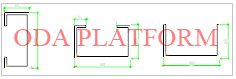
- 适应页面并位于其上角(左或右)。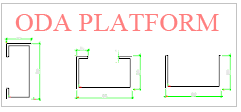
- 适应页面并位于其下角(左或右)。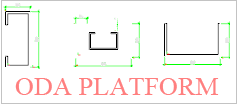
- 适应页面并位于其左上角到右下角。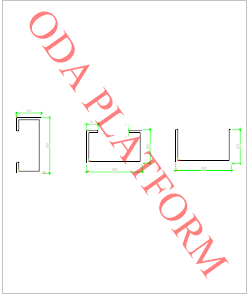
- 适应页面并位于其左下角到右上角。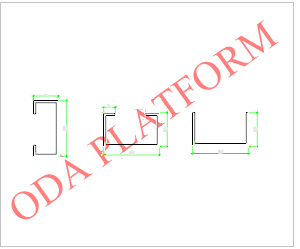
以下代码片段展示了如何将水印适应页面并位于其左上角到右下角:
```
watermark.color = ODRGB(255, 0, 0);
watermark.opacity = 75;
watermark.text = L"ODA Platform";
watermark.position = Watermark:: kUpperLeftToLowerRight;
//set the scaling option: Font size in this case will be calculated automatically.
watermark.scaleToPage = true;
```
- 适应页面并居中。
- 适应页面到其上角(左或右)。
- 适应页面到其下角(左或右)。
- 适应页面到其左上角到右下角。
- 适应页面到其左下角到右上角。
- 可以通过 [`Watermark`](https://docs.opendesign.com/tkernel/TD_PDF_2D_EXPORT__Watermark.html) 结构的 offset 变量设置水印的偏移量:
```
OdGePoint2d offset;
```
偏移值以毫米表示,其计算取决于水印位置(对于左下角,向右和向上计数;对于右上角,向左和向下计数,依此类推)。
- 旋转角度以弧度测量。通过设置旋转角度值,可以设置垂直或倒置文本,或为水印文本设置其他角度:
```
//vertical text
watermark.rotation = OdaPI2;
//upside down text:
watermark.rotation = OdaPI;
//arbitrary watermark angle
watermark.rotation = OdaToRadian(50);
//the fit to page flag can also affect the rotated watermark text
watermark.scaleToPage = true;
```
您还可以将适应页面标志应用于旋转文本(如上述代码片段所示)。
**注意:**旋转水印文本的结果可能会改变水印位置,甚至从页面中移除水印。如有必要,PDF 导出模块会自动移动水印以保持其位置(页面角或页面侧面中间)。
- 用于在特定页面上放置水印的页面索引。默认情况下,水印放置在输出 PDF 文档的每个页面上(pageIndex 属性等于 -1)。
```
Watermark watermark;
//adds a watermark only to the first page
watermark.pageIndex = 0;
```
- 图像作为水印:您可以添加图像作为水印而不是文本。如果您设置了图像水印,则无法为水印设置文本(但一个文档中可以有多个水印)。水印参数,例如旋转、偏移和不透明度,可以像文本水印一样应用于图像水印。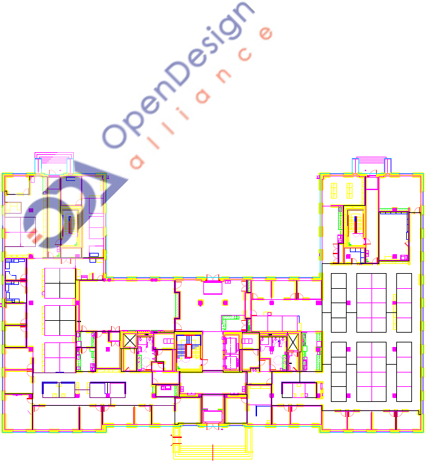以下代码片段演示了如何添加具有指定高度和宽度的图像作为水印:
```
Watermark watermark;
watermark.scaleToPage = false;
watermark.imageHeight = 50;
watermark.imageWidth = 50;
watermark.imagePath = pHostApp->findFile(L"pict.jpg");
```
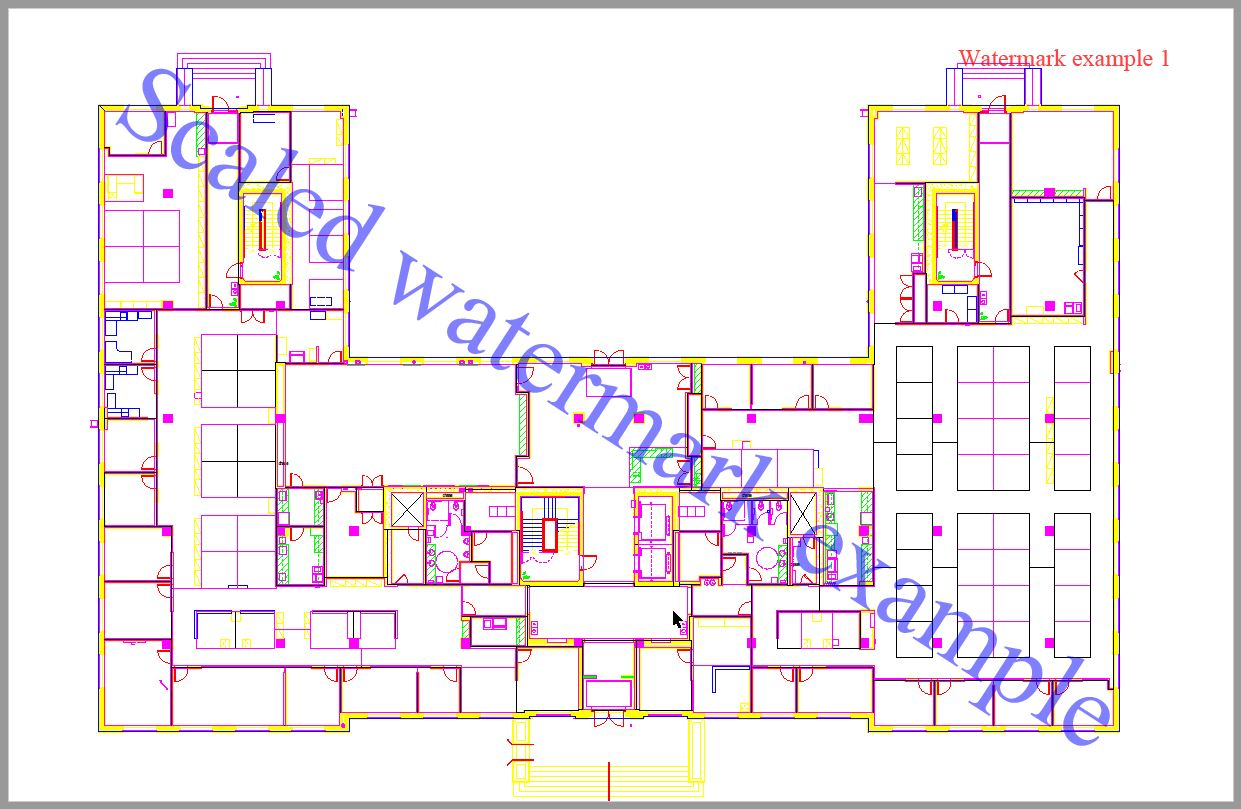
请注意,您可以向 [`PDFExportParams`](https://docs.opendesign.com/tkernel/TD_PDF_2D_EXPORT__PDFExportParams.html) 对象添加多个水印,如下面的代码片段所示:
```
PDFExportParams params;
Watermark watermark;
watermark.font = Watermark::kTimesRoman; //default value - Times Roman
watermark.color = ODRGB(255, 0, 0); //default value – black
watermark.fontSize = 24; //default value – 48
watermark.opacity = 75; //default value - 50%
Set watermark text:
watermark.text = L"Watermark example 1";
watermark.position = Watermark::kUpperRight; //default - left to right in the page center
//Add the first watermark
params.addWatermark(watermark);
//Change the options of the watermark
watermark.color = ODRGB(0, 0, 255);
watermark.opacity = 50;
watermark.text = L"Scaled watermark example";
watermark.position = Watermark:: kUpperLeftToLowerRight;
//set the scaling option: Font size in this case will be calculated automatically.
watermark.scaleToPage = true;
//Add the second watermark:
params.addWatermark(watermark);
```
生成的 PDF 文件如下图所示:
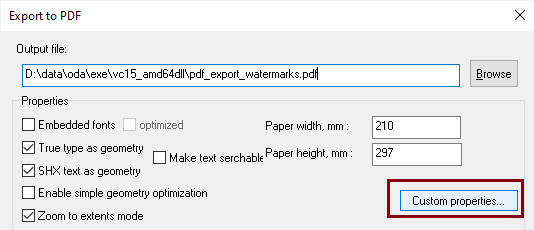
在 [OdaMfcApp](https://docs.opendesign.com/td/td_samples.html) 示例应用程序中,您可以使用“导出为 PDF”对话框指定 PDF 导出的水印选项:
单击“自定义属性”按钮以打开附加的“自定义 PDF 导出属性”对话框,然后单击“打印戳记”按钮以获取“打印戳记/水印”对话框,用于设置水印选项:
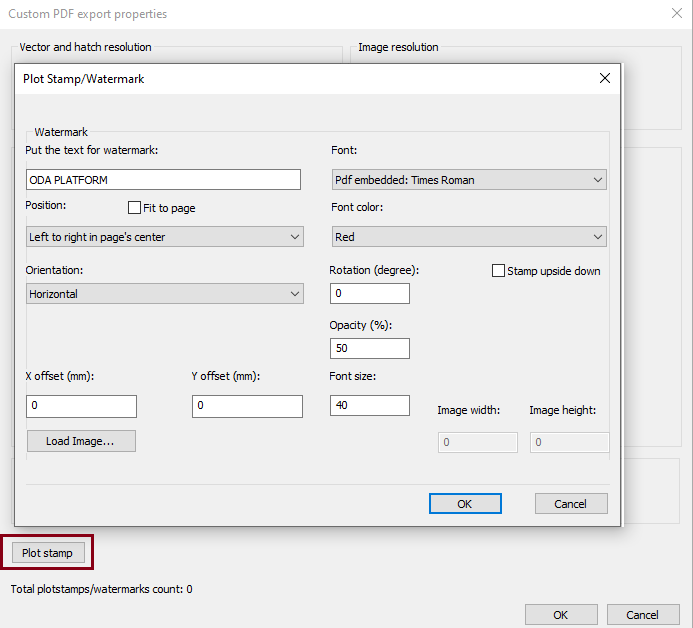在此对话框中,您可以指定水印文本、文本字体、字体大小、文本颜色、水印位置、不透明度以及其他水印属性。
有关更多信息,请参阅 [ODA 文档](https://docs.opendesign.com/td/export_to_pdf_03parameters_flags_watermark.html)。
## 今天就开始行动
**免费试用 ODA 软件 60 天。
无风险,无需信用卡。**
[免费试用](https://www.opendesign.com/cn/free-trial)