[返回博客](/cn/blog) # BimNv SDK:使用剖面
Vadim Asandiy 二月 12, 2021 [\#BimNv](/cn/blog/tag/bimnv) [\#getting started](/cn/blog/tag/getting-started)
本文介绍了如何处理由裁剪平面划分的视图剖面。
BimNv SDK 提供了对当前视图和已保存视图的剖面对象的访问。您可以使用以下方法获取它们:
```
OdNwClipPlaneSetPtr OdNwDatabase::getCurrrentViewClippingPlanes() const;
OdNwClipPlaneSetPtr OdNwSavedViewpoint::getClippingPlanes() const;
```
首先,为选定的视图启用剖面模式。可以使用以下方法进行检查:
```
bool OdNwClipPlaneSet::isEnabled() const;
```
OdNwClipPlaneSet 类的一个对象包含一组六个裁剪平面,可以处于平面模式或框模式。
您可以使用以下方法从集合中按索引获取裁剪平面:
```
OdResult OdNwClipPlaneSet::getClipPlaneByIndex(OdNwClipPlane& clipPlane, OdUInt32 idx);
```
从 OdNwClipPlane 类的每个对象中,您可以获取以下信息:
- 平面对齐类型:
- 对齐到视图
- 对齐到背面
- 对齐到正面
- 对齐到左侧
- 对齐到右侧
- 对齐到顶部
- 对齐到底部
- 对齐到曲面
- 对齐到线
- 自定义对齐
- 平面状态:
- 已启用裁剪
- 具有默认裁剪行为(取决于平面或框的剖面模式)
- 包含几何数据(位置、法线)的 OdGePlane 类对象
您可以使用以下方法从裁剪平面获取 OdGePlane 类的对象:
```
OdGePlane OdNwClipPlane::getPlane() const
```
#### 平面模式
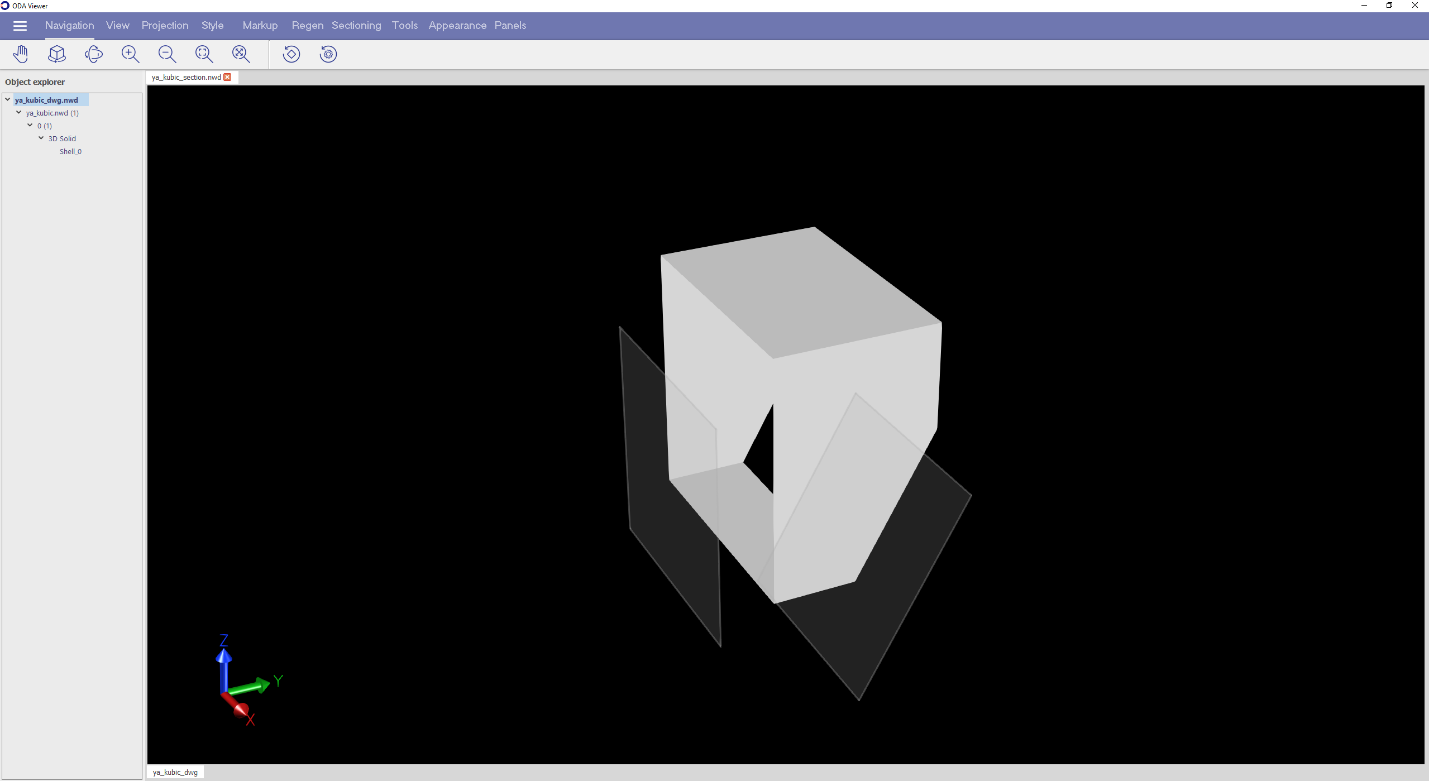
在平面模式下,参与剖面的平面处于启用状态,您可以从相应的 OdGePlane 对象获取平面的所有几何数据(位置、法线或轴)。处于默认状态的平面不参与剖面。
以下示例代码演示了在平面模式下使用剖面。
```
OdNwClipPlane plane;
//get the plane with index 3
if (eOk == pClipPlaneSet->getClipPlaneByIndex(plane, 3))
{
//get the plane state (DEFAULT - switched off or ENABLED - switched on)
NwClipPlaneState::Enum state = plane.getState();
if (state == NwClipPlaneState::ENABLED)
{
//get the section plane parameters
OdGePlane gePlane = plane.getPlane();
OdGePoint3d origin;
OdGeVector3d axis1, axis2;
gePlane.getCoordSystem(origin, axis1, axis2);
}
}
```
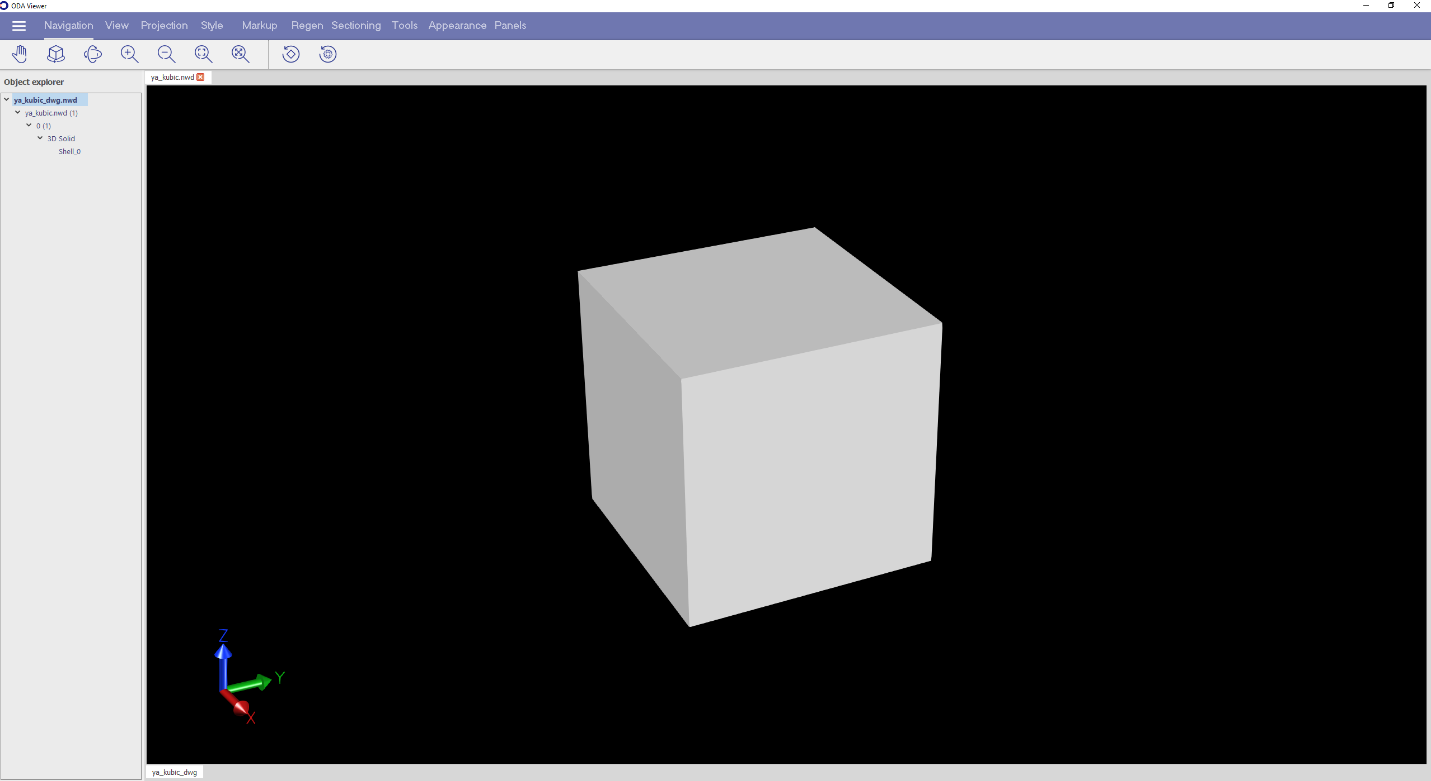
以下两张图片展示了没有剖面的模型,以及在平面(启用)模式下带有两个裁剪平面的同一模型的剖面。
####
####
#### 盒子模式
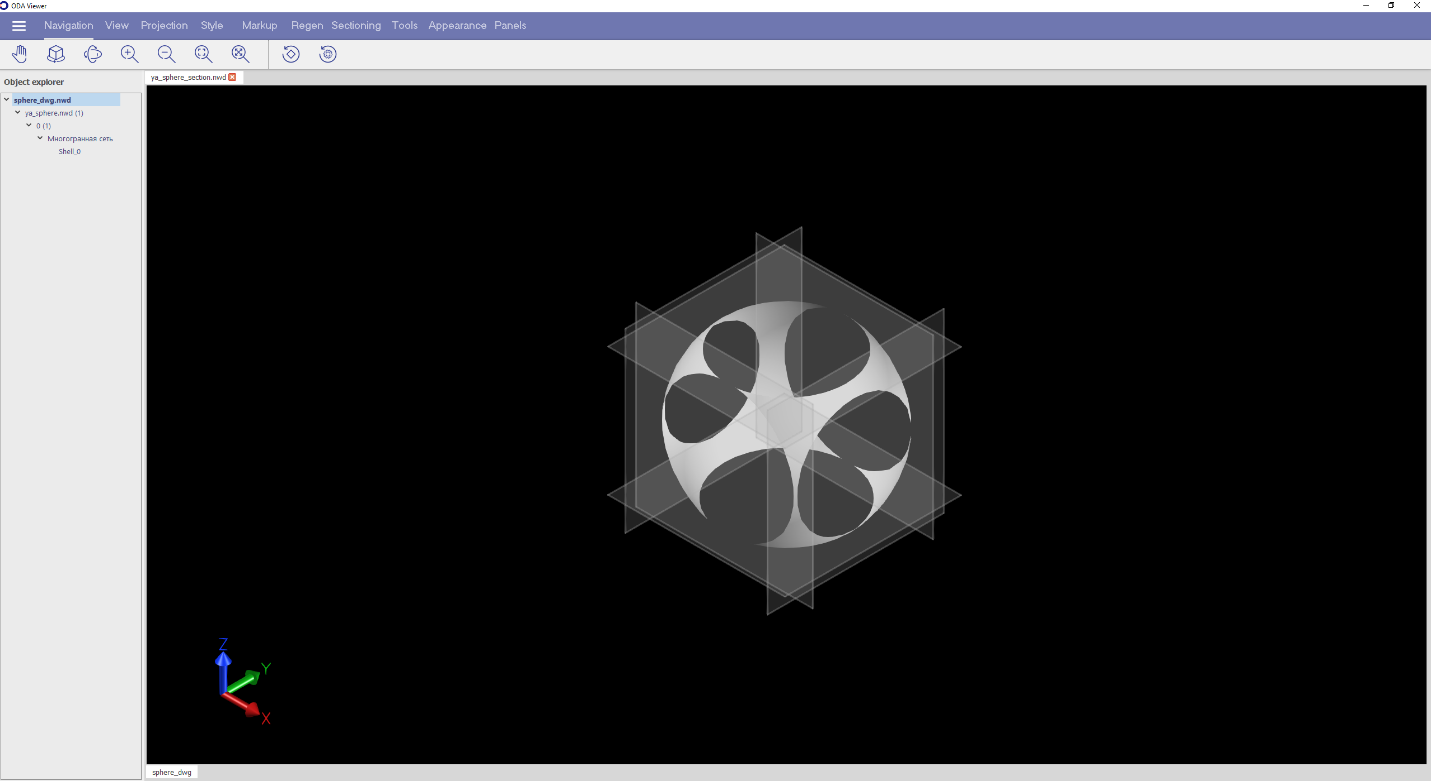
在盒子模式下,所有平面都处于默认状态,因此使用 OdGePlane 对象检索的几何数据不相关。对于所有六个平面中的每一个,都需要使用变换矩阵计算位置和法线的值,您可以使用以下方法获取该矩阵:
```
OdGeMatrix3d OdNwClipPlaneSet::getTransform() const
```
以下示例代码演示了在盒子模式下使用剖面。
```
if (pClipPlaneSet->getMode() == NwClipPlaneSetMode::CL_BOX)
{
//get the transformation matrix of sections
OdGeMatrix3d matrix = pClipPlaneSet->getTransform();
auto xAxis = matrix.getCsXAxis();
auto yAxis = matrix.getCsYAxis();
auto zAxis = matrix.getCsZAxis();
OdGePlane planeTop = OdGePlane(OdGePoint3d(0, 0, 0.5).transformBy(matrix), yAxis, xAxis);
OdGePlane planeBottom = OdGePlane(OdGePoint3d(0, 0, -0.5).transformBy(matrix), xAxis, yAxis);
OdGePlane planeFront = OdGePlane(OdGePoint3d(0, -0.5, 0).transformBy(matrix), zAxis, xAxis);
OdGePlane planeBack = OdGePlane(OdGePoint3d(0, 0.5, 0).transformBy(matrix), xAxis, zAxis);
OdGePlane planeLeft = OdGePlane(OdGePoint3d(-0.5, 0, 0).transformBy(matrix), yAxis, zAxis);
OdGePlane planeRight = OdGePlane(OdGePoint3d(0.5, 0, 0).transformBy(matrix), zAxis, yAxis);
//if the coordinate system is left hand, it is required to reverse the normals of planes
if (xAxis.crossProduct(yAxis).dotProduct(zAxis) < 0)
{
planeTop.reverseNormal();
planeBottom.reverseNormal();
planeFront.reverseNormal();
planeBack.reverseNormal();
planeLeft.reverseNormal();
planeRight.reverseNormal();
}
}
```
上述代码在剖面的盒子模式下,在 getPlanesForActiveMode() 方法中执行:
```
OdResult OdNwClipPlaneSet::getPlanesForActiveMode(OdArray& aPlanes) const
```
getPlanesForActiveMode() 方法有助于获取一组包含几何数据的平面。在平面模式下,此方法返回用于启用状态剪裁的 OdGePlane 对象,对于默认状态剪裁,它返回默认的 OdGePlane 对象。
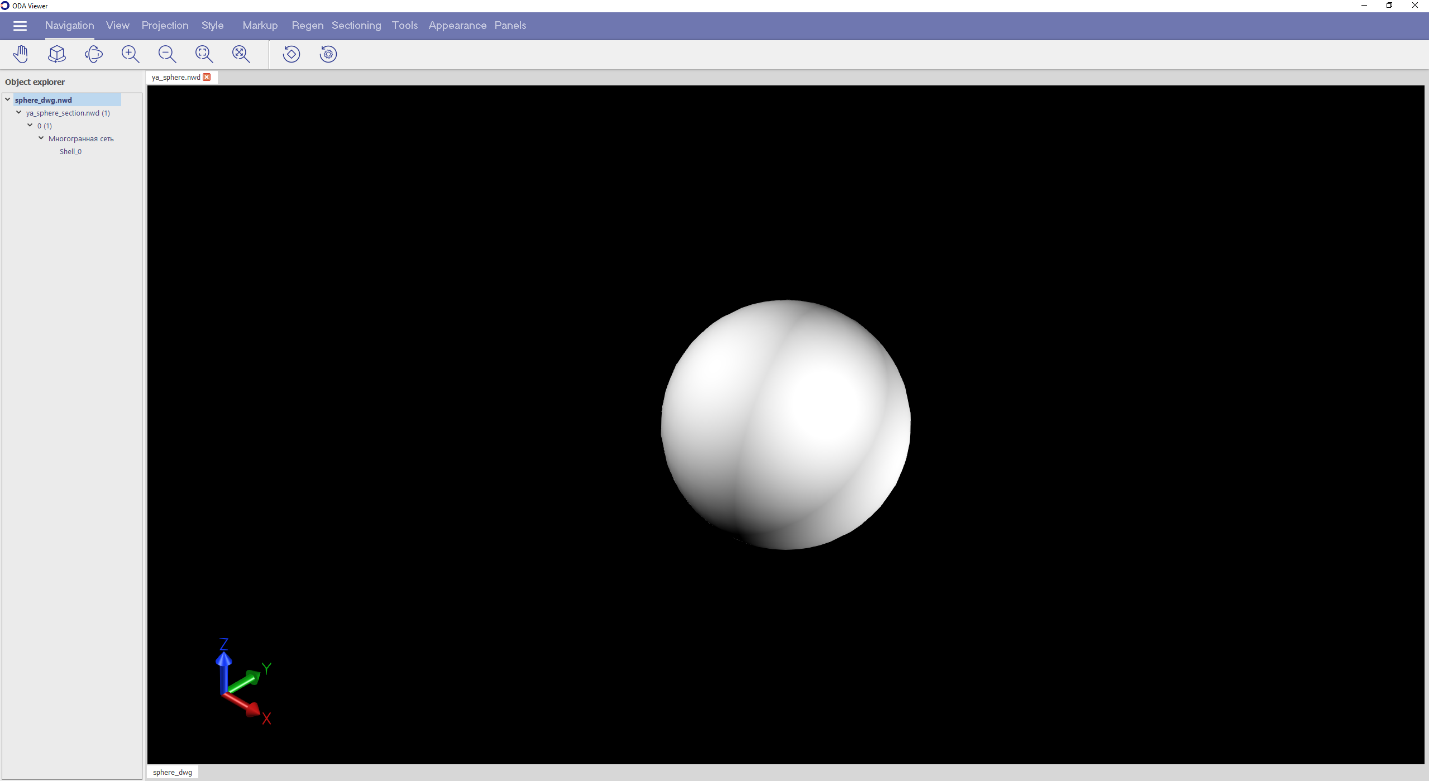
在以下两张图片中,您可以看到没有剖面的模型以及在盒子(默认)模式下带有六个剪裁平面的相同模型。
## 今天就开始行动
**免费试用 ODA 软件 60 天。
无风险,无需信用卡。**
[免费试用](https://www.opendesign.com/cn/free-trial)