[Back to Blog](/blog) # BimRv SDK Exports to JSON Files (Part 1 of 2)
Alexander Odnorog January 02, 2020 [\#rfa](/blog/tag/rfa) [\#rvt](/blog/tag/rvt)
It’s common for ODA members to exchange data between multiple file formats, including both older and newer file formats. One example is using BimRv SDK to export .rvt/.rfa files to JSON format files. Using the TB\_JsonExport module, you can export the following:
- All parameters contained in ListParam for all objects in the model
- Hierarchy of objects in the model
The TB\_JsonExport module is used in the BmJsonExportEx sample application, which is a console application that demonstrates the export capabilities with the following startup parameters:
- Input file — .rfa or .rvt file (required).
- Output file — .Json file (optional).
- Element handle — OdDbHandle of an OdBmElement for export (optional).
- Flag — Use -p for exporting properties; use -h for exporting the object hierarchy. Must be the last argument (required).
The export example also works in the OdaBimApp sample application.
#### Exporting Parameters and Properties to a JSON Format File
To export parameters and properties:
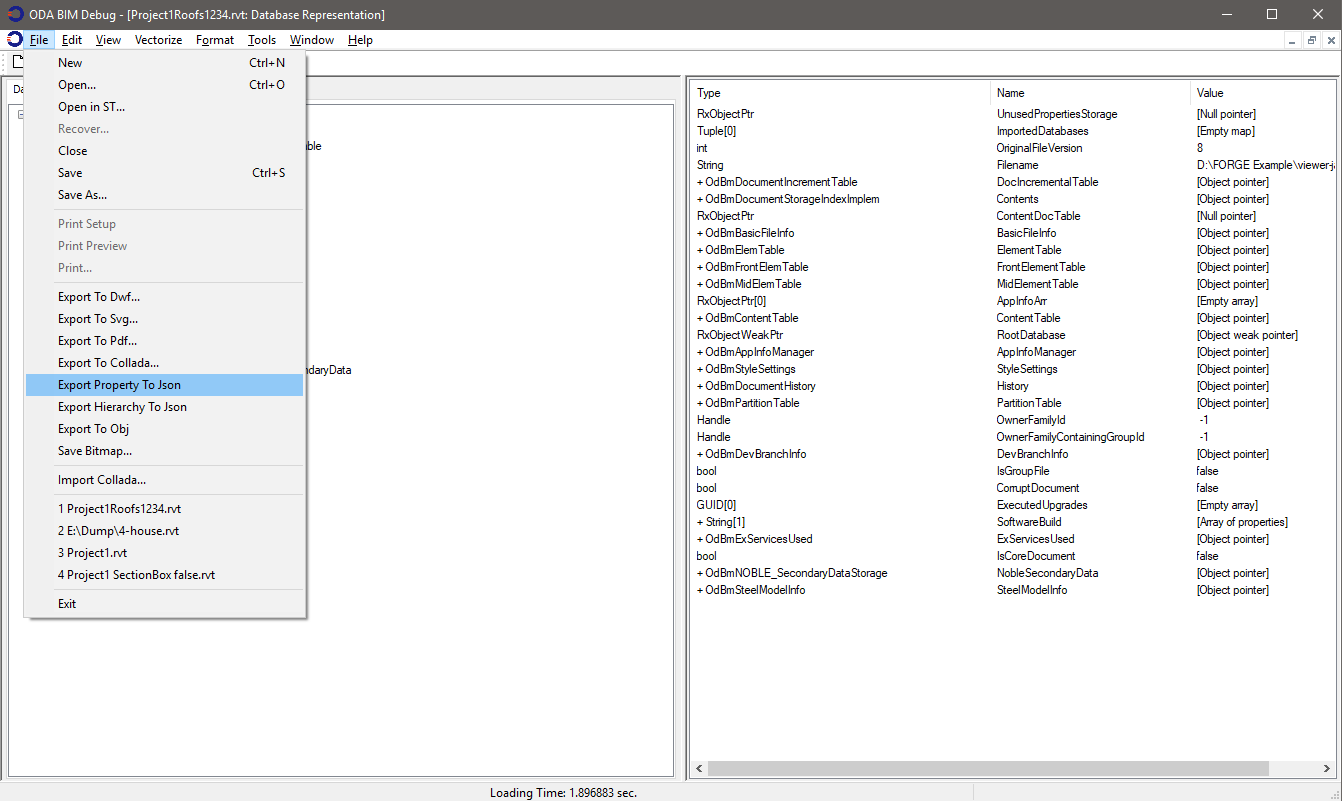
1. Open OdaBimApp and load any .rvt file.
2. Choose File -> Export Property To Json.
3. Select the path and name for the resulting .Json file.
It is also possible to export parameters for one specific object:
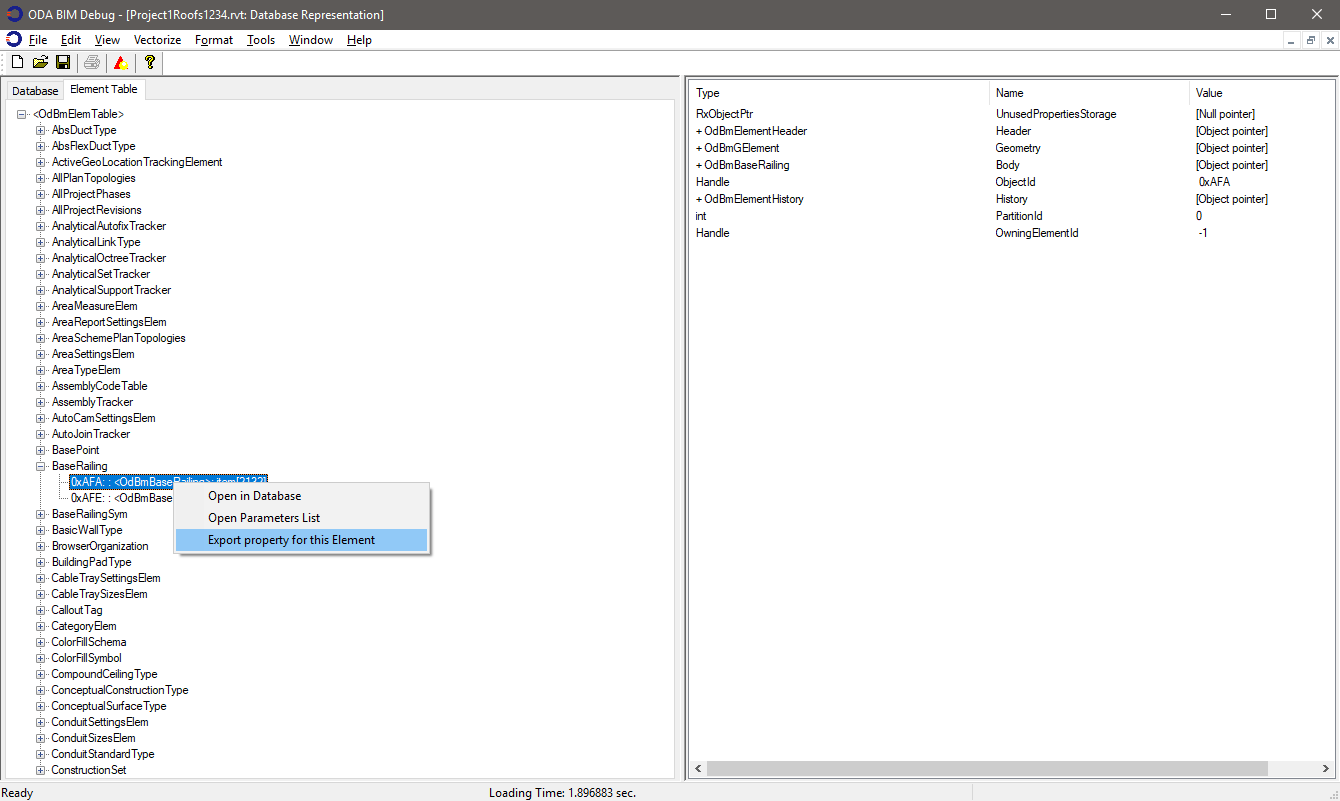
1. Right-click the desired object in the Element Table.
2. Choose Export Property for this Element.
3. Select the path and name for the resulting .Json file.
You can also select one of the drawn objects in the Viewer:
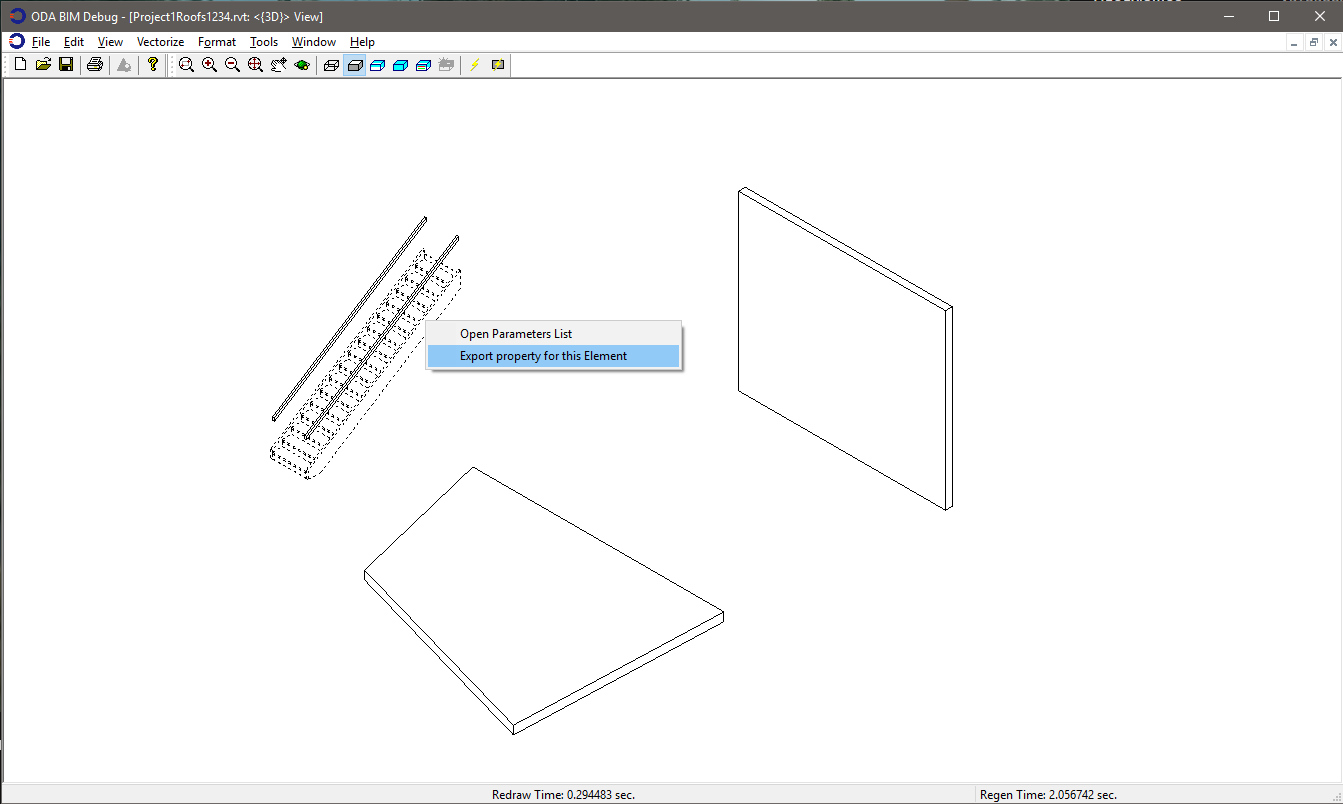
1. Choose Vectorize.
2. Right-click the desired object.
3. Choose Export Property for this Element.
4. Select the path and name for the resulting .Json file.
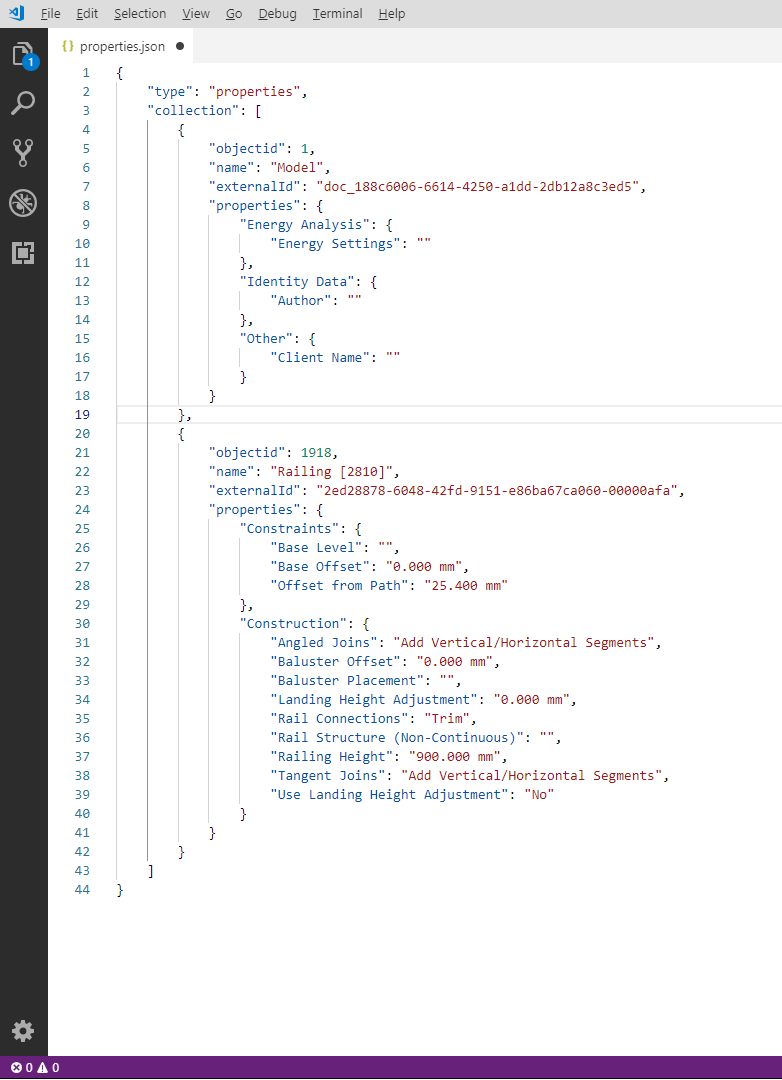
The result of exporting the parameters is a .Json file with this structure:
The next article in this series will contain an example of exporting the hierarchy to a .Json file.
## Get started today
**Try ODA software free for 60 days.
No risk, no credit card required.**
[Try for Free](https://www.opendesign.com/free-trial)