[Back to Blog](/blog) # Exporting part of a CAD drawing to a .pdf file
Sergey Sherstnev January 26, 2017 [\#pdf](/blog/tag/pdf) [\#Example](/blog/tag/example)
Sometimes Teigha subscribers ask: How do I export to a .pdf file only a certain part of a drawing instead of the whole drawing? Maybe it is not obvious because there is a default option ZoomToExtents in the PDF Export settings, and the same option is set by default in the PDFExportDialog of the OdaMfcApp sample application.

### What is that option and how to get rid of it?
The option is a flag in PdfExportSettings, which makes it easy to start using the PDF Export functionality. If this flag is unset, all settings relating to plot area are taken from PlotSetting, which is stored in the drawing file. More details about those settings are in the documentation. Here we just mention that the ZoomToExtents option makes the PdfExport module export a drawing as if the following options are set:
- Plot area – extents
- Scaled to fit
- Center the plot
So, take the next drawing:
[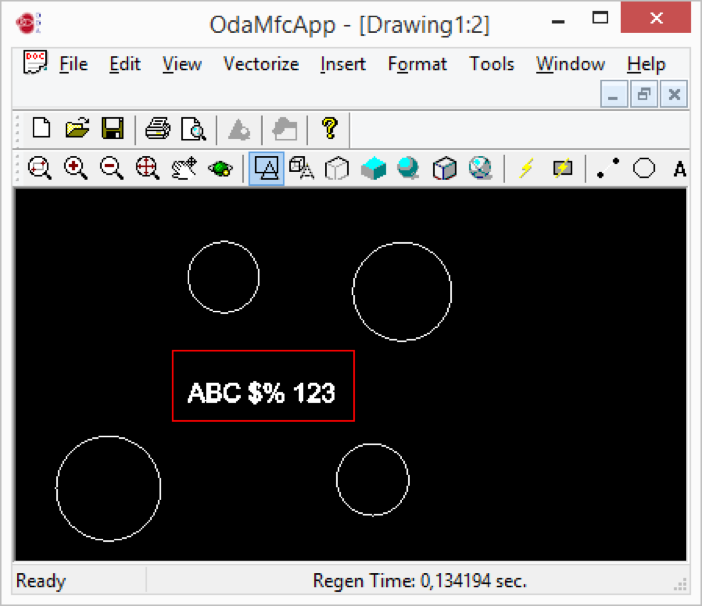](/files/images/blog/2017-01-26-pic2.png)
Export it to PDF with the ZoomToExtents option, and you get this .pdf file:
[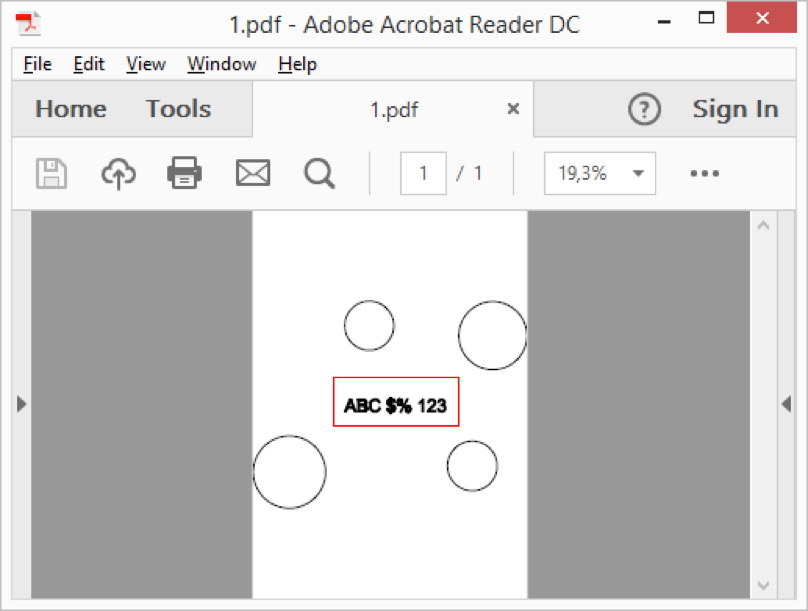](/files/images/blog/2017-01-26-pic3.png)
However, what if you want to export only part of the drawing, for example the entity located in the center? We won’t describe here how to do it using the OdaMfcApp sample application but instead explain with program code:
#### Read the drawing:
```
OdDbDatabasePtr pDb = m_pHostApp.readFile(inputFile);
```
#### Get the pointer to the entity using its ID:
```
OdDbEntityPtr pRect = OdDbEntity::cast(pDb->getOdDbObjectId( OdDbHandle(0x2AB)).safeOpenObject(OdDb::kForRead));
if (pRect.isNull())
throw OdError(eNullEntityPointer);
```
Please note, that in this example OdDbHandle(0x2AB) - is the hardcoded handle, it was copied from a particular drawing. You should replace 0x2AB with your own handle from the drawing you are working with.
#### Get the entity extents:
```
OdGeExtents3d ext;
pRect->getGeomExtents(ext);
```
For the paper space that’s enough, because the entity coordinates are correspond with the paper coordinates.
For the model space the extents should be projected to the to the eye plane for active viewport:
```
OdGePoint3d pt1, pt2;
OdRxObjectPtr pObj;
OdDbViewportTablePtr pVPT = pDb->getViewportTableId().safeOpenObject();
OdDbViewportTableRecordPtr pActiveVP = pVPT->getActiveViewportId().safeOpenObject();
OdAbstractViewPEPtr pVp = OdAbstractViewPEPtr(pObj = pActiveVP);
OdGeVector3d vecY = pVp->upVector(pObj);
OdGeVector3d vecZ = pVp->direction(pObj);
OdGeVector3d vecX = vecY.crossProduct(vecZ).normal();
OdGeVector2d offset = pVp->viewOffset(pObj);
OdGePoint3d prTarg = pVp->target(pObj) - vecX * offset.x - vecY * offset.y;
pt1.x = vecX.dotProduct(ext.minPoint() - prTarg);
pt1.y = vecY.dotProduct(ext.minPoint() - prTarg);
pt1.z = 0.;
pt2.x = vecX.dotProduct(ext.maxPoint() - prTarg);
pt2.y = vecY.dotProduct(ext.maxPoint() - prTarg);
pt2.z = 0.;
ext.set(pt1, pt2);
```
#### Get access to the plot settings:
```
OdDbObjectId idLayout =
OdDbBlockTableRecordPtr(pDb->getActiveLayoutBTRId().safeOpenObject())->getLayoutId();
OdDbLayoutPtr pLayout = idLayout.safeOpenObject(OdDb::kForWrite);
OdDbPlotSettings *pPlotSettings = pLayout.get();
```
#### Set the necessary plot area:
```
OdDbPlotSettingsValidatorPtr pValidator = pDb->appServices()->plotSettingsValidator();
pValidator->setPlotWindowArea(pPlotSettings, ext.minPoint().x, ext.minPoint().y, ext.maxPoint().x, ext.maxPoint().y);
pValidator->setPlotType(pPlotSettings, OdDbPlotSettings::kWindow);
pValidator->setPlotCentered(pPlotSettings, true);
pValidator->setStdScaleType(pPlotSettings, OdDbPlotSettings::kScaleToFit);
```
#### Then export the drawing:
```
OdPdfExportModulePtr pPdfModule = ::odrxDynamicLinker()->loadApp(OdPdfExportModuleName);
OdPdfExportPtr exporter = pPdfModule->create();
PDFExportParams params;
params.setDatabase(pDb);
params.setExportFlags((PDFExportParams::PDFExportFlags)(params.exportFlags() & (~PDFExportParams::kZoomToExtentsMode)));
OdUInt32 errCode = exporter->exportPdf(params);
```
The following .pdf file is the result:
[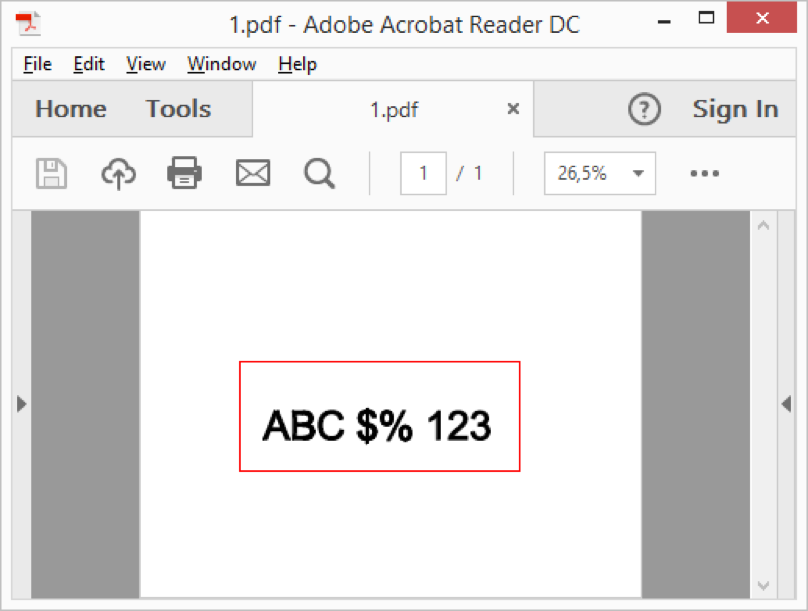](/files/images/blog/2017-01-26-pic4.png)
This is a simple and easy way to select any part of a drawing and export it to a .pdf file.
## Get started today
**Try ODA software free for 60 days.
No risk, no credit card required.**
[Try for Free](https://www.opendesign.com/free-trial)